How to Transfer Photos to New Phone
How to transfer photos to new phone. Learn how to transfer photos to a new phone on iPhone and Android, with cable, cloud, and cross-platform fixes plus
The new phone is charged, the setup screen is waiting, and your old phone still holds years of photos. Some are backed up, some may exist only on that device, and the pictures you really want from the wedding or family gathering might be sitting on someone else's phone. Getting everything across safely takes more than tapping “Transfer” and hoping for the best.
There are three separate jobs: moving your own library, handling a switch between iPhone and Android, and collecting photos that belong to other people. Treating them as one problem can leave gaps. A safer approach is to check what you have, choose a transfer route that fits your devices, and verify the result before wiping the old phone.
Table of Contents
- The New Phone Problem Nobody Warned You About
- Moving Photos the Same-Platform Way
- Picking the Right Backup Route for Your Library
- Cross-Platform Transfers and the Edge Cases That Break Them
- How to Audit Your Transfer Before You Wipe the Old Phone
- Collecting Everyone Else's Photos Through a Shared Upload Portal
- Your Safe Phone-to-Phone Handoff Checklist
The New Phone Problem Nobody Warned You About
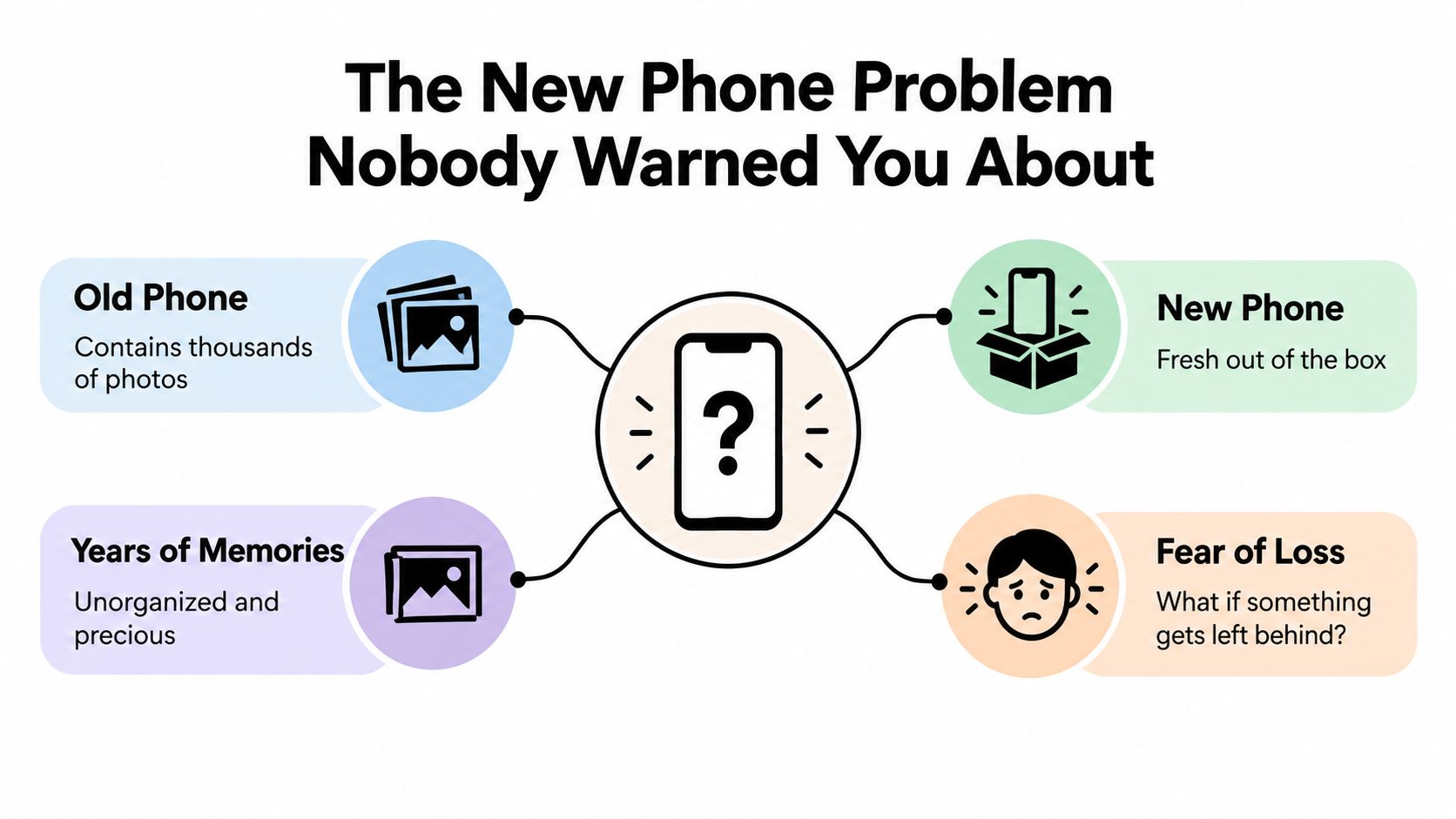
The moment usually comes while you're opening the new phone: the old one is close by, the setup screen is asking you to begin, and you remember that the pictures you care about aren't neatly stored in one place. Your camera roll may be on the old handset, some files may be in a cloud account, and the best photos from a shared event may never have reached your phone at all.
Cloud backup is useful, but it isn't safe to assume everyone has it turned on. A 2026 survey reported that 29.3% of respondents backed up smartphone content, including contacts and pictures, over the internet, while 43% said they completely forewent cloud backups, according to the eco survey on cloud backup habits. If your pictures exist only on the old phone, you'll need a direct transfer, a computer copy, a memory card, or a backup you set up before resetting the device.
It also helps to separate your personal migration from your event archive. Signing into the same account on a new phone may restore your own synced library, but it won't pull in photos that friends, relatives, or colleagues took on their devices. Those images need to be collected separately.
Start by identifying which situation you're in. If both phones use the same platform, follow the same-platform setup steps. If you're switching between iPhone and Android, use the cross-platform guidance and check compatibility before choosing wireless transfer. If you're trying to gather group photos, focus on a shared upload route rather than chasing individual messages.
Moving Photos the Same-Platform Way
The easiest transfer usually happens while the new phone is still in its initial setup. Before you begin, confirm that the photos you want are visible on the old phone, make a current backup if you can, and check that the new phone has enough available storage. Charge both devices and keep them on a stable Wi-Fi connection. A transfer can copy only what the source device or selected backup can provide.
iPhone to iPhone with Quick Start
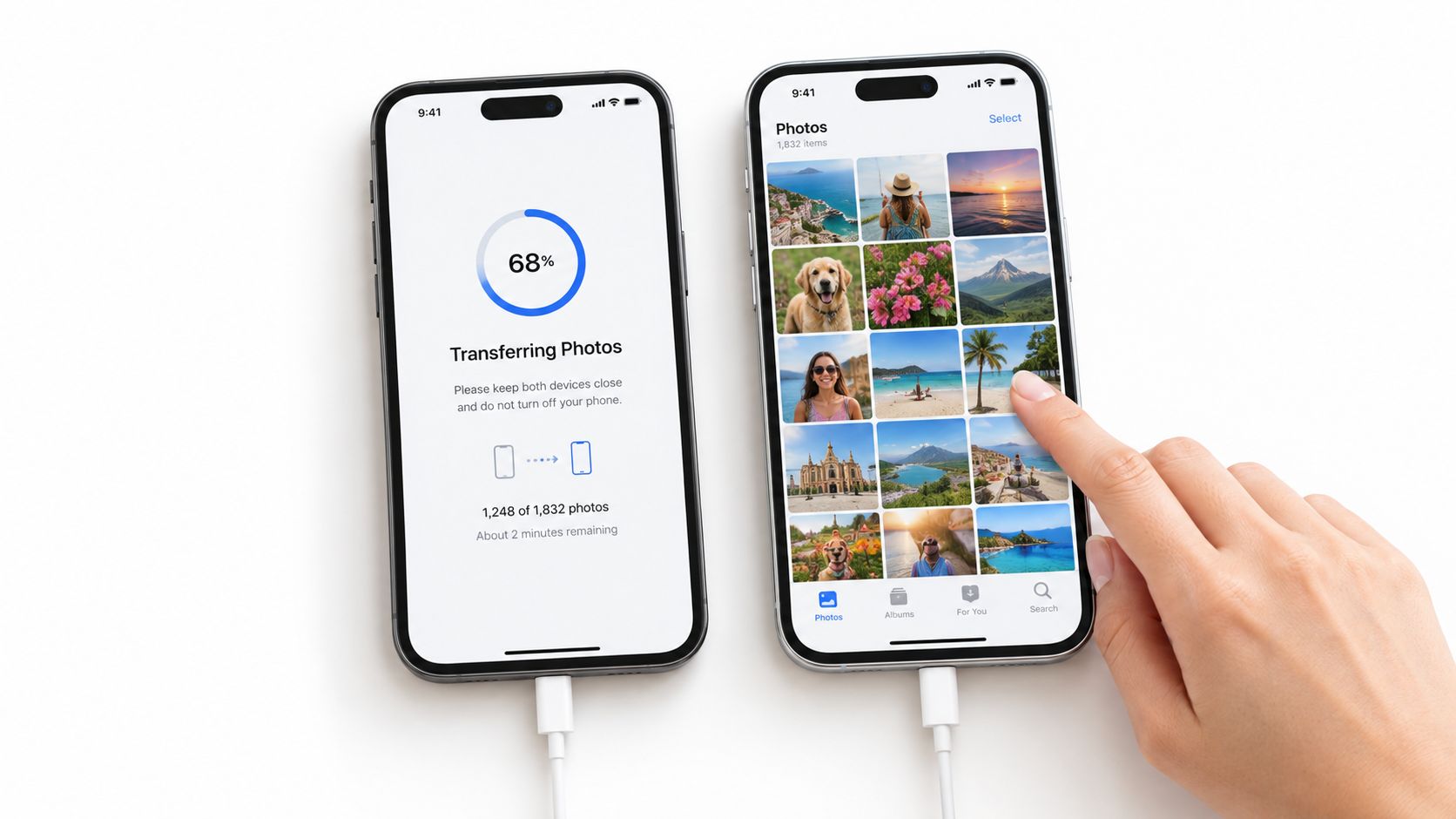
Apple's Quick Start connects the old and new iPhones during setup. Update both phones if possible, connect the old iPhone to Wi-Fi, turn on Bluetooth, then place the ready old phone beside the new one. Follow the setup prompt, scan the animation with the old phone, enter the old device's passcode on the new one, and choose either a direct device transfer or an iCloud download.
For a direct transfer, keep both iPhones nearby and connected to power until it finishes. Apple doesn't publish a universal speed or success benchmark, because the time depends on factors such as the amount of data and network conditions. If the setup animation disappears, Apple recommends restarting both devices, as described in its Quick Start instructions.
An iCloud download can let you start using the new phone sooner, while apps and other data continue downloading in the background. It still depends on your library having synced successfully, available cloud storage, and a working connection.
Android to Android through setup
On the new Android phone, start the initial setup and choose the option to copy data from an existing device. Follow the on-screen pairing or cable instructions, sign in to the same Google Account when prompted, and explicitly select photos and videos. Don't assume every data category is included just because the phones connect.
Google recommends checking that the shapes and numbers shown on both devices match before continuing. If you've already completed setup on the new phone, the migration flow may no longer be available without resetting it. After copying, check the photo library rather than treating the completion screen as proof that everything arrived.
Practical rule: Direct transfer is a good fit when both phones are available and you can leave them connected until the copy finishes. Restore from the cloud when the backup is current and you're comfortable relying on account access, storage, and a stable connection.
Picking the Right Backup Route for Your Library
Choose a backup route based on what you need to protect: automatic syncing, direct control of your files, or a one-time copy that doesn't depend on cloud storage. A market analysis estimated that smartphone users generated an average of 4 GB of new data per month in 2025, and that photos and videos made up about 68% of an average 25 GB of stored mobile data, equivalent to roughly 17 GB for those files before duplicates and caches. Those estimates are described in the personal cloud storage market analysis. A library with lots of video can quickly become awkward to move through a limited cloud quota.
| Route | Cost | File control | Automatic? | Biggest risk |
|---|---|---|---|---|
| iCloud | Depends on your available plan and storage | Convenient within Apple's account and devices | Yes, once photo syncing is enabled | A full quota or account access problem can interrupt syncing |
| Google Photos | Depends on available account storage and any plan you choose | Files are managed through your Google account | Yes, after backup is enabled | Uploads may stall when storage or connectivity runs short |
| Computer | Uses storage you already have, unless you need more | High, because you can keep a separate folder of copied files | Usually no, unless you configure a backup routine | A single computer copy can fail with the computer or drive |
| Memory card | Depends on the card and whether your phone supports it | Direct access to the files on the card | Usually no | The phone may not support cards, or the card may be lost or damaged |
For a one-time migration, a computer can be a practical middle ground: copy the photos into a folder you control, then import or transfer them to the new phone. It takes more handling than account-based sync, but it doesn't depend on finishing a large upload first. If you already use Microsoft cloud storage, this OneDrive setup guide for Windows and Mac can help you understand how to make a separate copy accessible across your devices.
If you're choosing a service specifically to protect a photo library, compare how it handles original files, syncing, account access, and recovery, not just the app's upload button. This guide to photo backup services can help you frame that decision. For a phone move, a simple rule works: choose cloud for ongoing access across devices, a computer for file control, and a memory card only when your phone and workflow support it.
Cross-Platform Transfers and the Edge Cases That Break Them
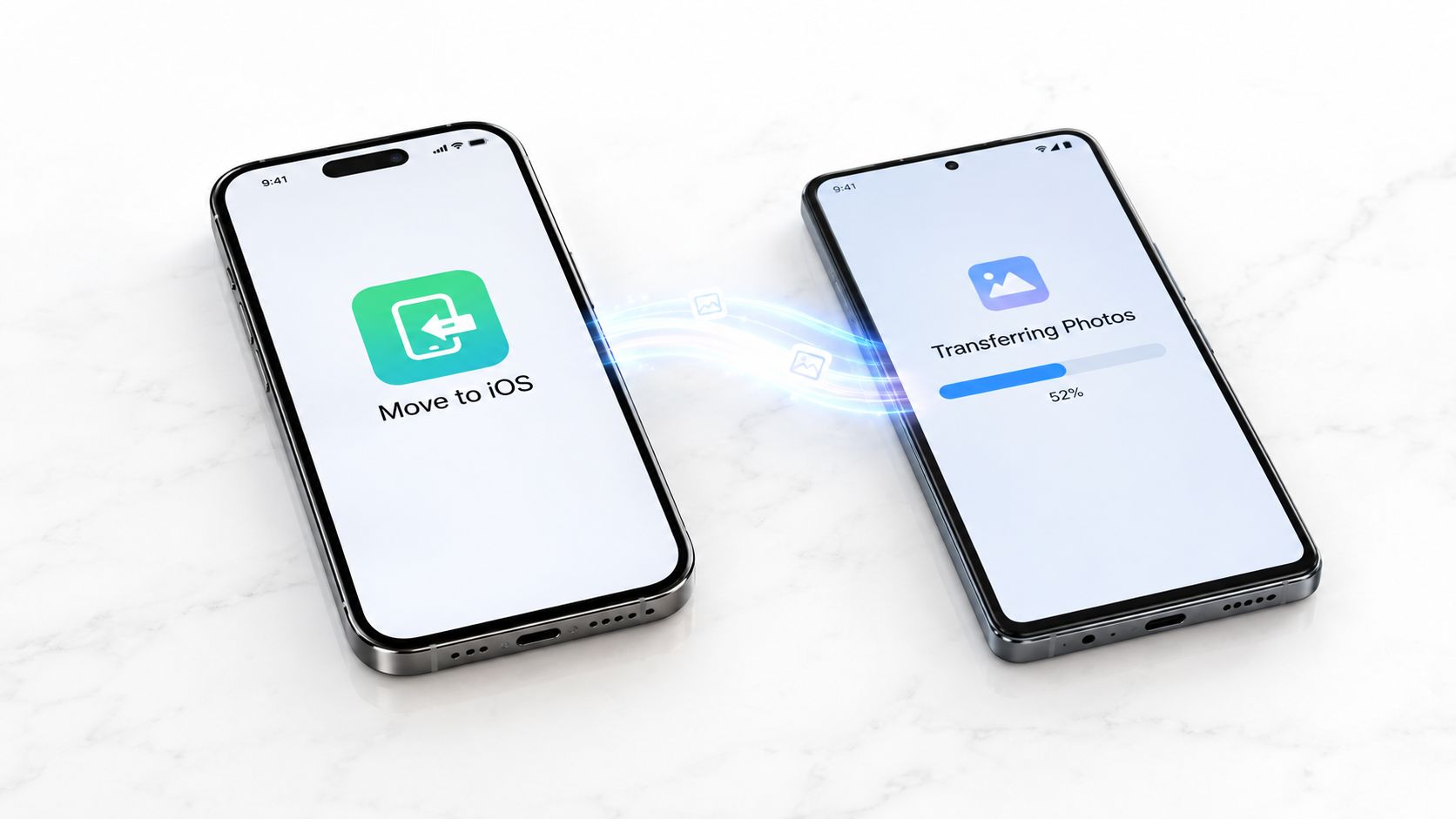
Switching from iPhone to Android or Android to iPhone changes the choices. Start with the new phone's setup flow, because both platforms offer migration instructions there. On an iPhone receiving data from Android, Apple's Move to iOS app is designed for the initial setup process. On Android, select “iPhone or iPad” when asked which device you're copying from, then follow the displayed directions.
Before committing to a wireless method, check whether both phones meet its requirements. Google says cable transfer works with most Android devices running Android 5.0 or later and iPhones running iOS 8.0 or later. Wi-Fi transfer has stricter requirements, including iOS 15 or later in the cited troubleshooting steps. Google also says Android Quick Share can reach an iPhone only when AirDrop visibility is set to “Everyone for 10 minutes,” and only on compatible devices. See the Android cross-platform transfer guidance before choosing a route.
Let the constraint choose the method
If the old phone runs an older operating system, first check whether the setup wizard supports it. If wireless transfer isn't available or reliable, try a compatible cable. If that's not workable, copy the files to a computer and import them to the new phone. Apple's computer-based approach for Android media involves locating files, typically in the DCIM folder, copying them to a computer, and importing them to the iPhone. It's more hands-on, but it can avoid depending on a large cloud upload.
A refurbished phone that's still locked to a previous owner is a separate problem. Don't try to work around the lock or treat it as a photo-transfer issue. The device needs to be properly released by its previous owner or seller before you can set it up and receive your files.
File formats and motion features need their own checks. HEIC photos, Live Photos, Motion Photos, and high-resolution video may not behave identically across platforms or apps. If the receiving phone or an app can't open a format, convert a copy rather than deleting the original. For a batch of HEIC files, an HEIC-to-JPG conversion tool can be useful, but conversion may change which metadata or motion components are retained.
When free cloud storage is limited, don't force a long upload of a large video library. Use a cable or computer for the full-resolution files, and keep the originals on the old phone until you've checked the destination. The right answer depends on what's constrained: an older operating system points toward a cable or computer, a compatible setup wizard favors direct migration, and tight cloud storage calls for a local copy.
How to Audit Your Transfer Before You Wipe the Old Phone
A finished progress bar tells you the transfer process ended. It doesn't prove every album, original, or motion photo made it across. A 2025 survey of 116 smartphone users in Japan found that 74.1% kept photos and videos only on the phone itself, while 54.3% used automatic cloud backup, according to the Japanese smartphone backup survey. Because respondents could choose multiple answers, the figures overlap, but they underline why an independent check matters.
Before you start
- Confirm the source: Open the old phone's photo library and check that the photos and videos you expect are there.
- Create a fallback: Make a current backup or copy the files to a computer before beginning the migration.
- Keep both devices usable: Charge the phones, connect them as needed, and don't trade in or erase the old device during the transfer.
After the copy finishes
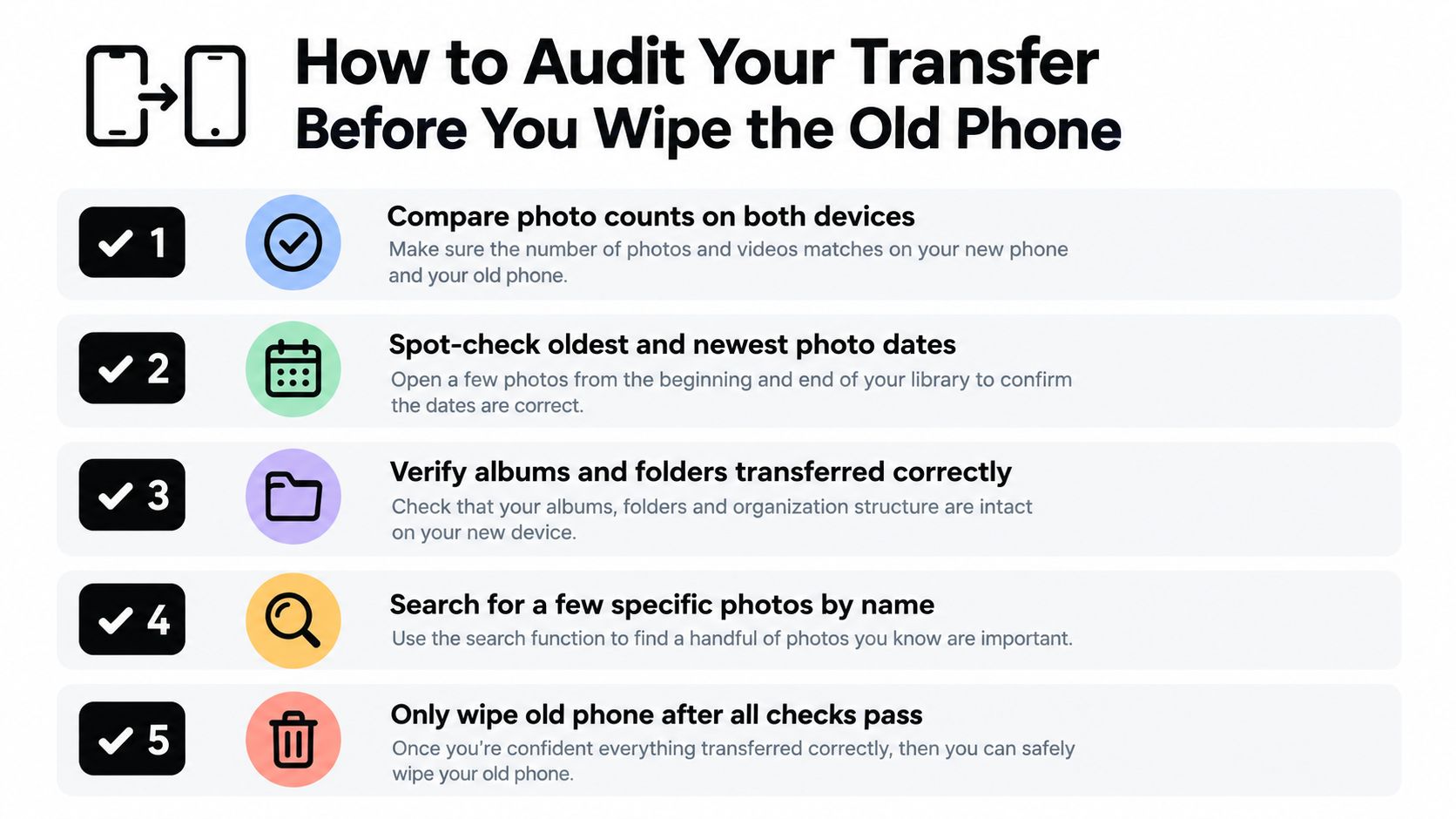
Compare the photo counts on both phones where the apps provide them. Then check the oldest and newest dates, open several albums, and search for a few specific photos you know should be there. Play videos and confirm they open at the expected quality, rather than relying on a thumbnail.
Test Live Photos or Motion Photos by opening and playing them on the new phone. Also look beyond the main camera roll for downloads, messaging-app media, edited versions, and folders that may not be part of the standard transfer. A duplicate finder can help you inspect repeated files after the migration; use a duplicate photo finder only after confirming you have a safe copy of anything you might remove.
Keep the old phone powered on and untouched until the audit passes. When it's finally time to sell, recycle, or donate it, follow a secure disposal process; Reworx Recycling's cell phone disposal guidance can help you think through the handoff. The safest sequence is simple: verify, copy, audit, then erase.
Collecting Everyone Else's Photos Through a Shared Upload Portal
Moving your own library won't bring over the pictures your guests took. A family member may have the best shot of the candles, a friend may have caught the moment everyone missed, and a colleague may have recorded the candid clip that makes the event recap feel real. If those files stay scattered across personal phones and private chats, replacing one organizer's phone won't collect them.
A shared upload portal gives everyone one place to contribute. For a wedding, put a QR code on the tables so guests can upload photos from their own phones to a private gallery instead of sending individual messages afterward. For a corporate offsite, a comms team can share one upload link with attendees, gather candid images while the event is still fresh, and download the archive for the recap before people head home.
The useful distinction is that a group chat is built for conversation, while a shared upload page is built for gathering files. Guests may not want to install another app, create an account, or hunt through a long thread to find the right place to send images. A browser-based page with a simple upload flow reduces those hurdles, and a QR code makes the destination easy to find in person.
EventUploader is one option for this workflow. It provides a branded upload page and a shared link or QR code, allowing guests to upload photos and videos from their phones without installing an app or creating an account. The organizer can view contributions through a dashboard and download the collected files in original quality. From there, the archive can be saved to a computer or transferred to a replacement phone as one consolidated collection.
This doesn't replace personal backups. It solves a different problem: collecting moments that were captured on other people's devices. Gather the group photos first, then move or back up the shared archive once, instead of relying on one person's phone or trying to reconstruct the event from scattered messages later.
Your Safe Phone-to-Phone Handoff Checklist
Before you start, confirm that the old phone contains the library you expect and make a backup or separate copy. Choose direct transfer, cloud restore, cable, or computer based on your phones, storage, and connection. Afterward, compare counts, check dates and albums, open sample photos, and play videos before erasing the old device. For an event, gather the pictures from everyone's phones before relying on a single person's library.
Missing album? Check the old phone and any computer copy, then transfer that album separately. Live Photos turned into stills? Keep the originals on the source device and check whether the chosen app or method preserves motion. Video looks blurry? Open the downloaded original rather than a preview or thumbnail. Old phone already gone? Check any cloud account, computer backup, memory card, messaging app, or shared gallery where copies might exist.
The best time to plan the handoff is before opening the new phone. If it's already out of the box, start with the checklist and don't wipe the old device until you've checked the new library.
If an event's photos are spread across guests' phones, EventUploader gives everyone one upload page or QR code and lets the organizer download the collected files in original quality. Set up a private collection for your next gathering, then visit EventUploader to see how it works.